
Skip to content
SiteOnAI
  • Home
  • KP Authore Box
  • WordPress Plugins
  • About SiteOnAI
  • Blog
  • Contact Us
Get Started
SiteOnAI
  • Home
  • KP Authore Box
  • WordPress Plugins
  • About SiteOnAI
  • Blog
  • Contact Us
Get Started
  1. Home
  2. KP Author Box
  3. Author Box: How to Add an Author Box in WordPress Using KP Author Box Plugin
KP Author Box

Author Box: How to Add an Author Box in WordPress Using KP Author Box Plugin

July 3, 2026 by admin@skillup
WordPress Author Box Guide

Author Box: How to Add an Author Box in WordPress Using KP Author Box Plugin

An author box is one of the easiest ways to build trust, improve author visibility and make your WordPress posts look more professional. In this guide, you will learn what an author box is, why it matters, and how to add an author box in WordPress using the KP Author Box plugin.

Download KP Author Box

If you run a WordPress blog, news website, business blog or content website, your readers should know who is behind the content. A simple author box can show the author’s name, short bio, profile image, website link and social media profiles. This helps visitors understand the writer’s background and gives your content a more trustworthy and professional look.

The KP Author Box plugin is built for WordPress users who want to add a clean and responsive author box without writing code. It supports custom author details, avatar image, bio, website, social links, posts and pages, shortcodes, Gutenberg blocks, live preview and import/export settings.
KP Author Box live preview in WordPress posts and pages

KP Author Box live preview for WordPress posts and pages.

Table of Contents
  1. Table of Contents
  2. What Is an Author Box?
  3. Why Author Box Matters in WordPress
    1. Builds Trust
    2. Improves Branding
    3. Better User Experience
    4. Useful for Multi-Author Sites
  4. What Is KP Author Box Plugin?
  5. KP Author Box Plugin Features
    1. Custom Author Data
    2. WordPress Author Data
    3. Multiple Custom Authors
    4. Social Media Links
    5. Shortcode Support
    6. Gutenberg Block Support
    7. Live Preview
    8. Import and Export
  6. How to Install KP Author Box Plugin
    1. Step 1: Download the Plugin ZIP
    2. Step 2: Upload Plugin in WordPress
    3. Step 3: Activate the Plugin
    4. Step 4: Complete the Setup
  7. How to Add Author Name, Bio, Avatar and Social Links
    1. Recommended Author Details
  8. How to Display Author Box on Posts and Pages
    1. Option 1: Automatic Display
    2. Option 2: Select Custom Author Per Post
    3. Option 3: Use Shortcode
  9. Common Issues and Fixes
    1. Author Box Not Showing
    2. Avatar Image Not Displaying
    3. Social Links Not Working
    4. Design Looks Different on Mobile
  10. Helpful Links
  11. Frequently Asked Questions
    1. What is KP Author Box Plugin?
    2. Is KP Author Box mobile responsive?
    3. Can I add social media links?
    4. Can I use it without coding?
    5. Does it work on posts and pages?
  12. Conclusion
  13. Ready to Add an Author Box to WordPress?
    1. Custom Author (Author Writor)

Table of Contents

  1. What Is an Author Box?
  2. Why Author Box Matters in WordPress
  3. KP Author Box Plugin Features
  4. How to Install KP Author Box Plugin
  5. How to Add Author Name, Bio, Avatar and Social Links
  6. How to Display Author Box on Posts and Pages
  7. Common Issues and Fixes
  8. Frequently Asked Questions

What Is an Author Box?

An author box is a small profile section that usually appears before or after a WordPress post. It displays information about the author of the content. A typical author box includes the author’s name, profile photo, short biography, website link and social media links.

On many blogs, the author box appears at the bottom of the article. It helps readers learn more about the person who wrote the post. For websites with guest authors, multiple writers or content teams, an author box is very useful because it clearly shows author identity.

In simple words, an author box works like a mini author profile inside your WordPress content. It adds credibility, improves content presentation and gives readers a direct way to connect with the author.

Why Author Box Matters in WordPress

WordPress websites publish content for different goals. Some websites publish tutorials, some publish product guides, some publish news and some publish business content. In every case, trust is important. Readers want to know who is giving the information and why they should trust that content.

Builds Trust

Showing author details helps readers understand who wrote the content and makes your website look more transparent.

Improves Branding

Authors can build their personal brand by displaying bio, image, website and social media profile links.

Better User Experience

A clean author box makes your posts look complete and gives readers more context about the content creator.

Useful for Multi-Author Sites

If your website has multiple writers or guest authors, author boxes make it easy to identify each contributor.

What Is KP Author Box Plugin?

KP Author Box is a WordPress author box plugin created to help website owners display author profile boxes on posts and pages. It is designed for bloggers, content writers, business websites, guest posting websites, WordPress developers and agencies.

The plugin allows you to use WordPress author data or custom author data. This means you can show the default WordPress author information or manually create a custom author profile with name, bio, avatar, website and social media links.

KP Author Box is useful when you want a simple, responsive and easy-to-manage author box without touching PHP, CSS or theme files.
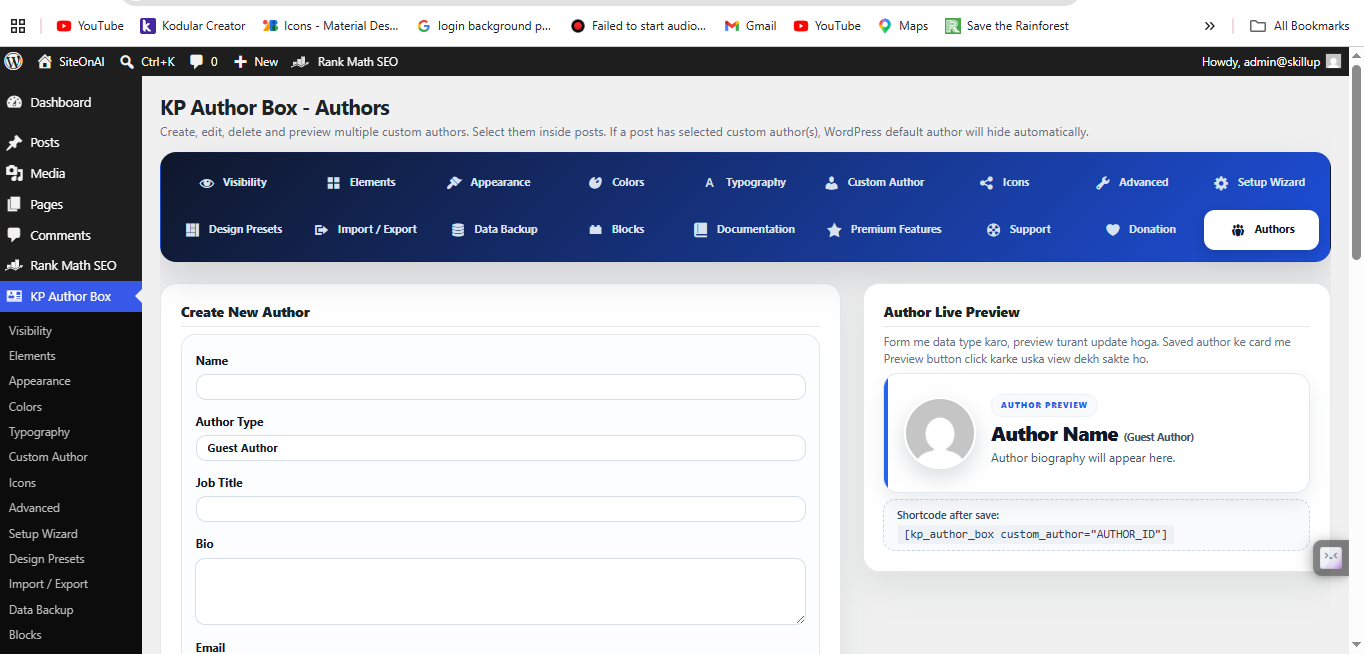
Create multiple custom authors using KP Author Box plugin

Create and manage multiple custom authors with KP Author Box.
KP Author Box Plugin Features

KP Author Box includes useful features for creating and displaying author profile sections in WordPress. The plugin is built to keep the setup simple while still giving website owners enough control over author information and display options.

Custom Author Data

Add custom author name, bio, avatar image URL, website and social media links.

WordPress Author Data

Use existing WordPress user profile information as author box content.

Multiple Custom Authors

Create multiple author profiles and select them for different posts and pages.

Social Media Links

Add social profile links like Facebook, Instagram, LinkedIn, X/Twitter and YouTube.

Shortcode Support

Display author boxes manually using simple shortcodes inside posts or pages.

Gutenberg Block Support

Use author box blocks inside the WordPress block editor for easy placement.

Live Preview

Preview the author box design while changing settings and author information.

Import and Export

Export author box settings as JSON and use them as backup or on another website.

How to Install KP Author Box Plugin

Installing KP Author Box is simple. You can upload the plugin ZIP file from your WordPress admin dashboard and activate it like any other WordPress plugin.

Step 1: Download the Plugin ZIP

First, download the KP Author Box plugin ZIP file from the official plugin page on SiteOnAI.

Download KP Author Box Plugin

Step 2: Upload Plugin in WordPress

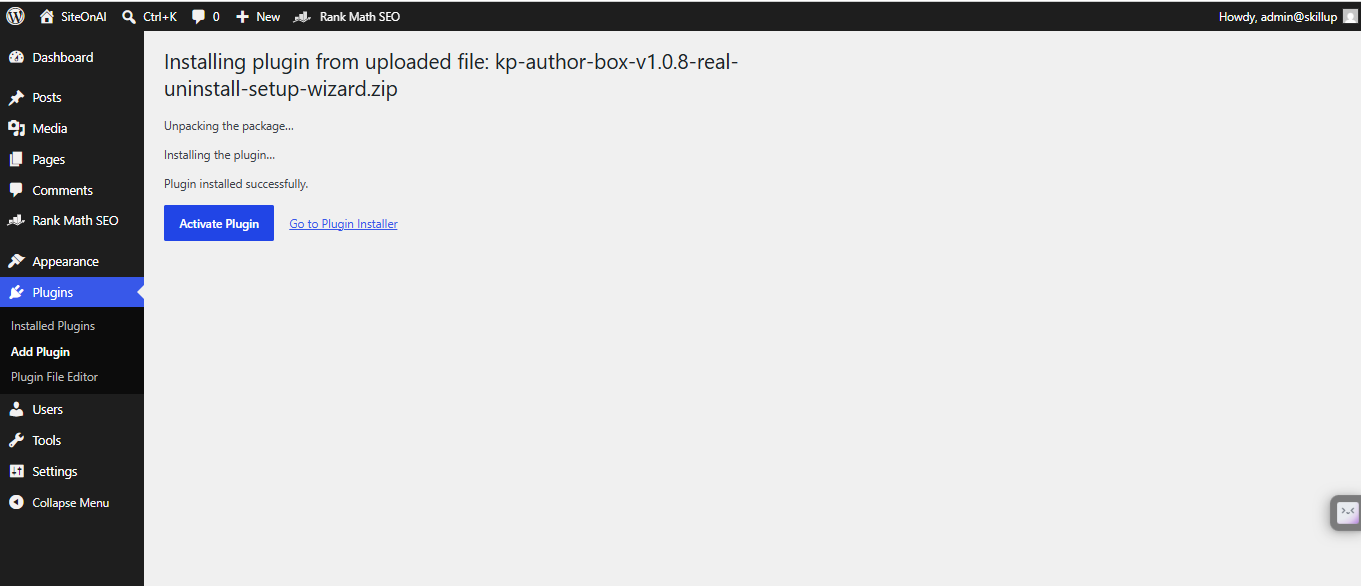
Go to your WordPress dashboard and open Plugins → Add New → Upload Plugin. Choose the KP Author Box ZIP file and click Install Now.

Step 3: Activate the Plugin

After installation, click the Activate Plugin button. Once activated, the KP Author Box settings page will become available in your WordPress admin panel.

Step 4: Complete the Setup

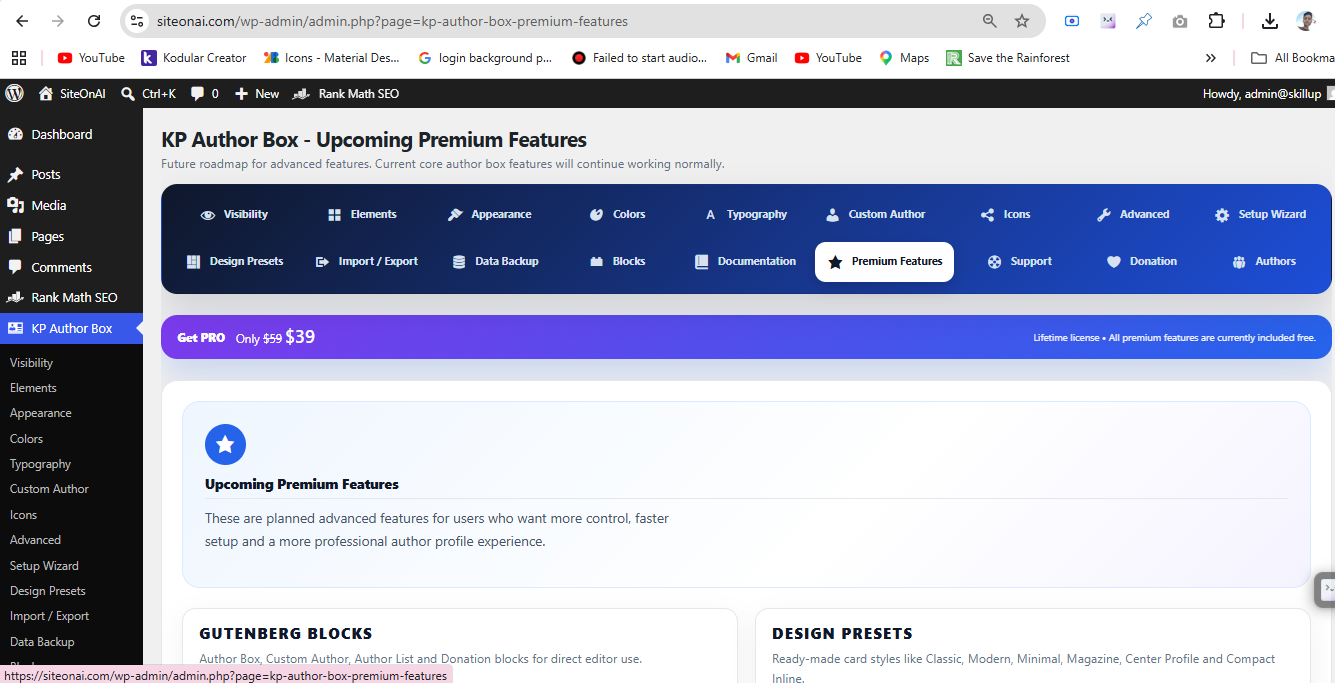
The plugin includes a setup wizard and settings panel where you can configure author box display options, custom author data, design settings and other features.

Install KP Author Box plugin from WordPress admin dashboard

Upload and install KP Author Box from the WordPress plugin installer.
How to Add Author Name, Bio, Avatar and Social Links

After activating the plugin, you can add author details from the plugin settings or custom author section. The main author information usually includes name, bio, avatar image, website and social media links.

Recommended Author Details

  • Author Name: Add the real author name or brand author name.
  • Author Bio: Write a short and trustworthy author description.
  • Avatar Image: Add a clean profile photo or brand image.
  • Website URL: Add the author website or profile page.
  • Social Links: Add Facebook, Instagram, LinkedIn, X/Twitter, YouTube or other profiles.

A good author bio should be short, clear and useful. Avoid adding too much promotional text. Mention experience, topic expertise and helpful links where readers can connect with the author.

KP Author Box plugin settings panel for author box customization

KP Author Box settings panel for author data and display options.
How to Display Author Box on Posts and Pages

KP Author Box gives you flexible options to display the author box on your WordPress website. You can show it automatically before or after content, select custom authors for specific posts and pages, or use shortcodes for manual placement.

Option 1: Automatic Display

You can enable automatic author box display from the plugin settings. This is the easiest option if you want the author box to appear on all selected posts or pages.

Option 2: Select Custom Author Per Post

For guest posting websites or multi-author content websites, you can select a custom author for individual posts and pages. This helps you show the correct author profile for each article.

Option 3: Use Shortcode

If you want to manually place the author box inside content, widgets or templates, you can use the shortcode option.

Example shortcode:

[kp_author_box]
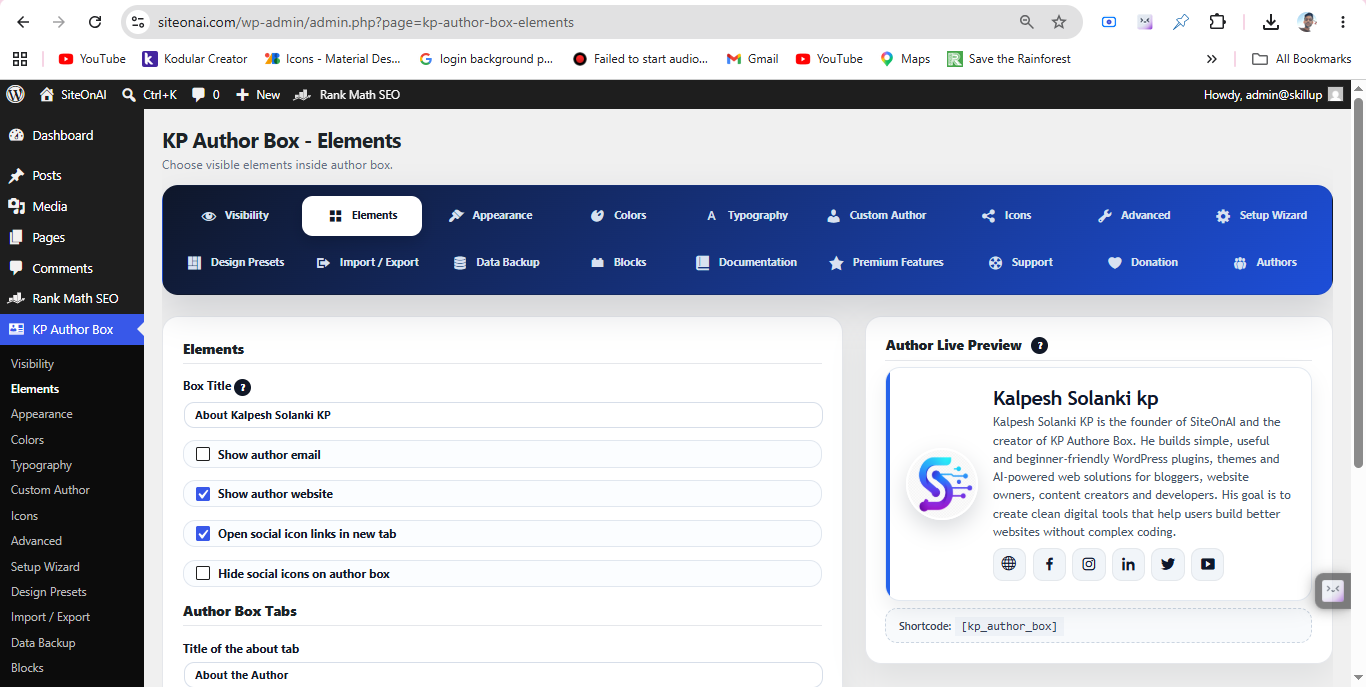
KP Author Box visual elements and design settings

Manage visual elements and author box appearance inside the plugin panel.

Common Issues and Fixes

Most author box issues are easy to fix. Below are some common problems users may face while setting up an author box in WordPress.

Author Box Not Showing

Check plugin settings and make sure author box display is enabled for posts or pages. Also check whether the selected post type is supported.

Avatar Image Not Displaying

Make sure the avatar image URL is correct and publicly accessible. Use a clean image URL from your WordPress media library.

Social Links Not Working

Check that each social media URL starts with the correct format such as https://facebook.com/username or https://linkedin.com/in/username.

Design Looks Different on Mobile

Clear your website cache and check the page again. Also test with a default theme to confirm if the issue is caused by theme CSS.

Helpful Links

Explore more resources related to KP Author Box and WordPress plugins on SiteOnAI.

KP Author Box Plugin WordPress Plugins KP Author Box Category

Frequently Asked Questions

What is KP Author Box Plugin?

KP Author Box is a WordPress author box plugin that helps you display author name, bio, avatar, website and social media links on posts and pages.

Is KP Author Box mobile responsive?

Yes. KP Author Box is designed to work on desktop, tablet and mobile screens so your author box can look clean across devices.

Can I add social media links?

Yes. You can add social links such as Facebook, Instagram, LinkedIn, X/Twitter, YouTube and other author profile links.

Can I use it without coding?

Yes. KP Author Box is made for no-code users. You can install the plugin, add author details and display the author box from the WordPress dashboard.

Does it work on posts and pages?

Yes. KP Author Box can be used on WordPress posts and pages. You can also use shortcode support for manual placement.

Conclusion

Adding an author box in WordPress is a simple but powerful way to improve trust, branding and user experience. It helps readers understand who created the content and gives authors a professional space to share their bio, website and social links.

KP Author Box makes this process easy for WordPress users. You can add custom author data, display author boxes on posts and pages, use shortcodes, manage multiple authors and customize author information without coding.

Ready to Add an Author Box to WordPress?

Download KP Author Box and create a professional author profile section for your WordPress posts and pages.

Download KP Author Box

Custom Author
About the Author

Custom Author (Author Writor)

Sed non elit aliquam, tempor nisl vitae, euismod quam. Nulla et lacus lectus. Nunc sed tincidunt arcu. Nam maximus luctus nunc, in ullamcorper turpis luctus ac.

Rate this Post
Click on a star to rate it!
No votes so far! Be the first to rate this post.
Was this helpful?
KP Author Box
Share:

Post navigation

Previous Post
Best Author Box WordPress Plugin for Posts and Pages
Next Post
Simple Author Box Alternative: KP Author Box Plugin for WordPress

admin@skillup

Authore Box and need support, please include your WordPress version, plugin version, website URL and a short explanation of the issue. This helps us understand your problem faster. You can also contact us for suggestions, new features, design improvement ideas or bug reports related to our WordPress plugins.

Related Posts

KP Author Box Plugin Features, Benefits and Customization Options

KP Author Box Plugin Features, Benefits and Customization Options

July 3, 2026

How to Create a WordPress Author Page with an Author Box

July 3, 2026

Simple Author Box Alternative: KP Author Box Plugin for WordPress

July 3, 2026

Leave a Reply

Cancel reply

Your email address will not be published. Required fields are marked *

SiteOnAI

SiteOnAI creates premium WordPress plugins, AI tools, and in-depth tutorials for developers and website owners.

  • Home
  • Blog
  • Search

Categories

  • KP Author Box

© 2026 SiteOnAI. All rights reserved.

SiteOnAI Theme by SiteOnAI.