
How to Create a WordPress Author Page with an Author Box
A WordPress author page helps readers learn more about the person behind the content. In this guide, you will learn how to create a WordPress author page with an author box using the KP Author Box plugin.
Download KP Author BoxIntroduction
A WordPress author page is a dedicated page where visitors can learn about an author, writer, blogger, contributor or content creator. It usually includes the author’s name, profile photo, short biography, website link, social media links and sometimes a list of posts written by that author.
If you want to make your website look more professional, an author page with a clean author box can help. The KP Author Box plugin makes it easy to display author details on WordPress posts and pages without coding.
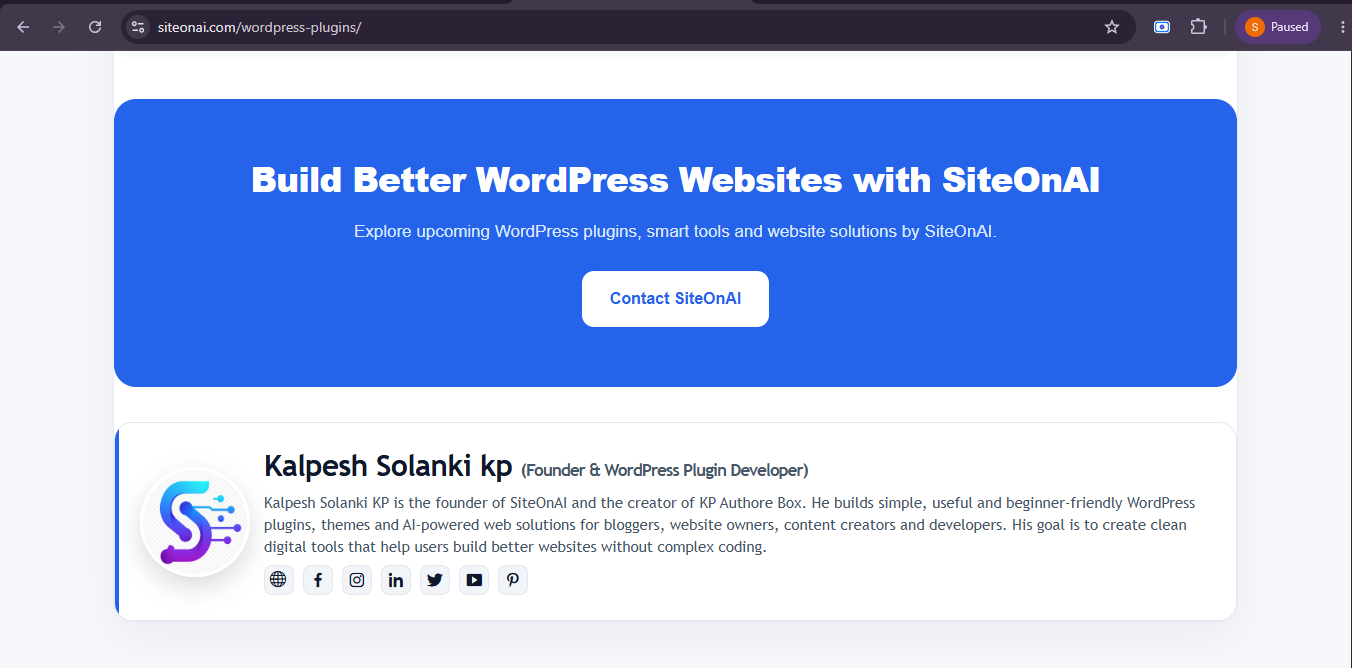
KP Author Box live preview for WordPress posts and pages.
Why This Topic Matters
Many WordPress websites publish useful content, but they forget to show clear author information. When readers do not know who wrote the content, the website may feel less trustworthy. A proper author page and author box can solve this problem.
Builds Trust
Author pages help readers understand who created the content and why they should trust the information.
Improves Branding
A good author page helps writers, bloggers and businesses build a strong content identity.
Better User Experience
Visitors can easily find author details, social links and related content from one place.
Useful for Guest Posts
If your website accepts guest posts, an author page makes contributor profiles look more professional.
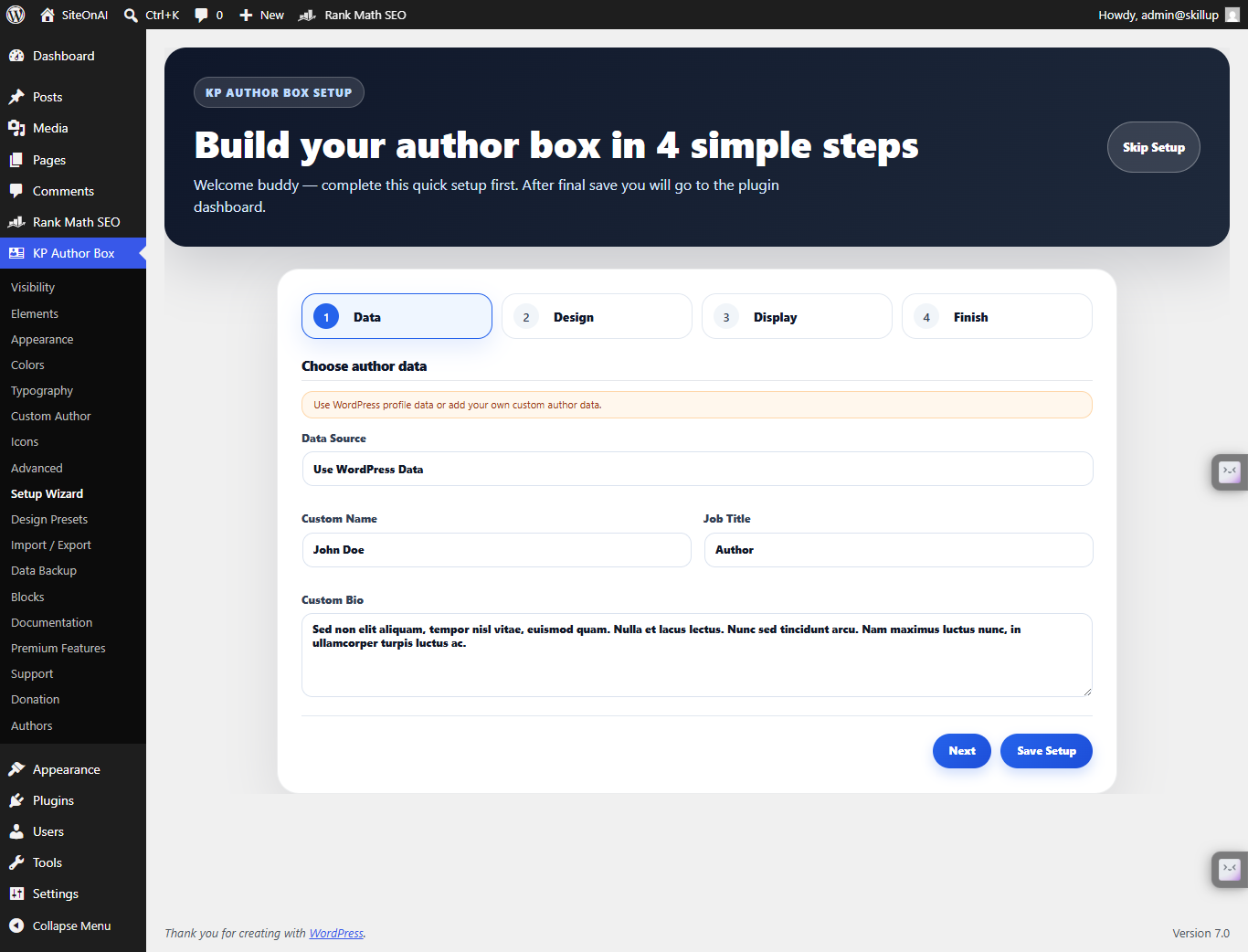
KP Author Box setup wizard for quick plugin configuration.
Step-by-Step Guide: Create a WordPress Author Page with an Author Box
Follow these simple steps to create an author page and add an author box using KP Author Box.
Step 1: Install KP Author Box Plugin
Go to your WordPress dashboard and open Plugins → Add New → Upload Plugin. Upload the KP Author Box ZIP file, install it and activate the plugin.
Download KP Author Box Plugin →Step 2: Add Author Details
Open the KP Author Box settings or custom author section. Add the author name, short bio, avatar image, website URL and social media links. Make sure the author bio is clear and helpful for readers.
Step 3: Create a New WordPress Page
Go to Pages → Add New and create a page for the author. You can name it something like “About the Author”, “Author Profile”, or use the author’s name as the page title.
Step 4: Add Author Box to the Page
You can add the author box automatically through plugin settings or manually using shortcode. If you want to show the shortcode as text in an article, use HTML entities. But if you want WordPress to display the author box, paste the shortcode normally inside the editor.
Example shortcode:
[kp_author_box]
Step 5: Add More Author Information
Below the author box, you can add extra details such as author expertise, writing topics, experience, popular posts, contact information or links to social profiles. This makes the author page more useful.
Step 6: Publish and Test the Page
Publish the author page and test it on desktop and mobile. Check avatar image, social links, author bio, page layout and spacing. Also make sure the page is linked from posts, menus or author-related content.
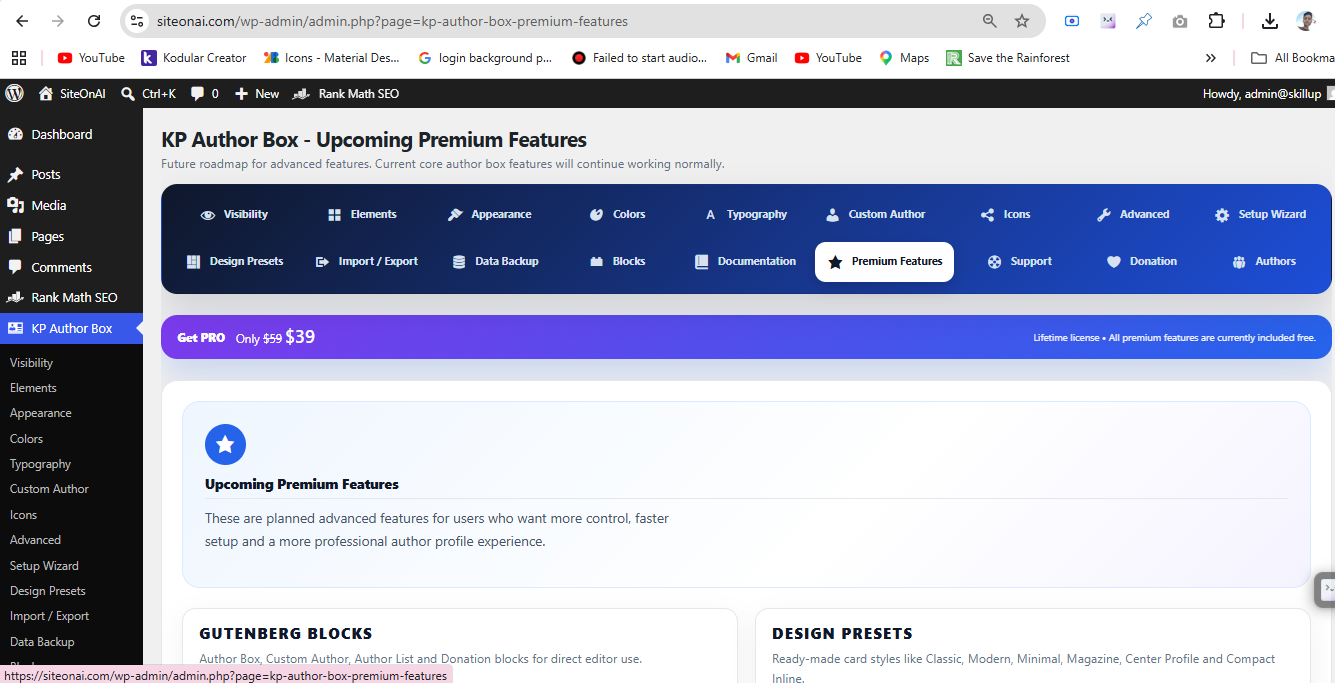
KP Author Box settings panel for author data and display options.
Customization Tips for a Better Author Page
A good author page should be simple, clean and helpful. It should not only show the author name but also explain why readers should trust the author.
Use a Professional Avatar
Use a clear profile photo or brand image that looks trustworthy and matches your website style.
Write a Clear Bio
Keep the author bio short, useful and focused on experience, expertise and writing topics.
Add Social Links
Add social media profiles so readers can follow or connect with the author outside your website.
Link to Author Posts
Add links to popular posts or author archives to keep readers engaged with more content.
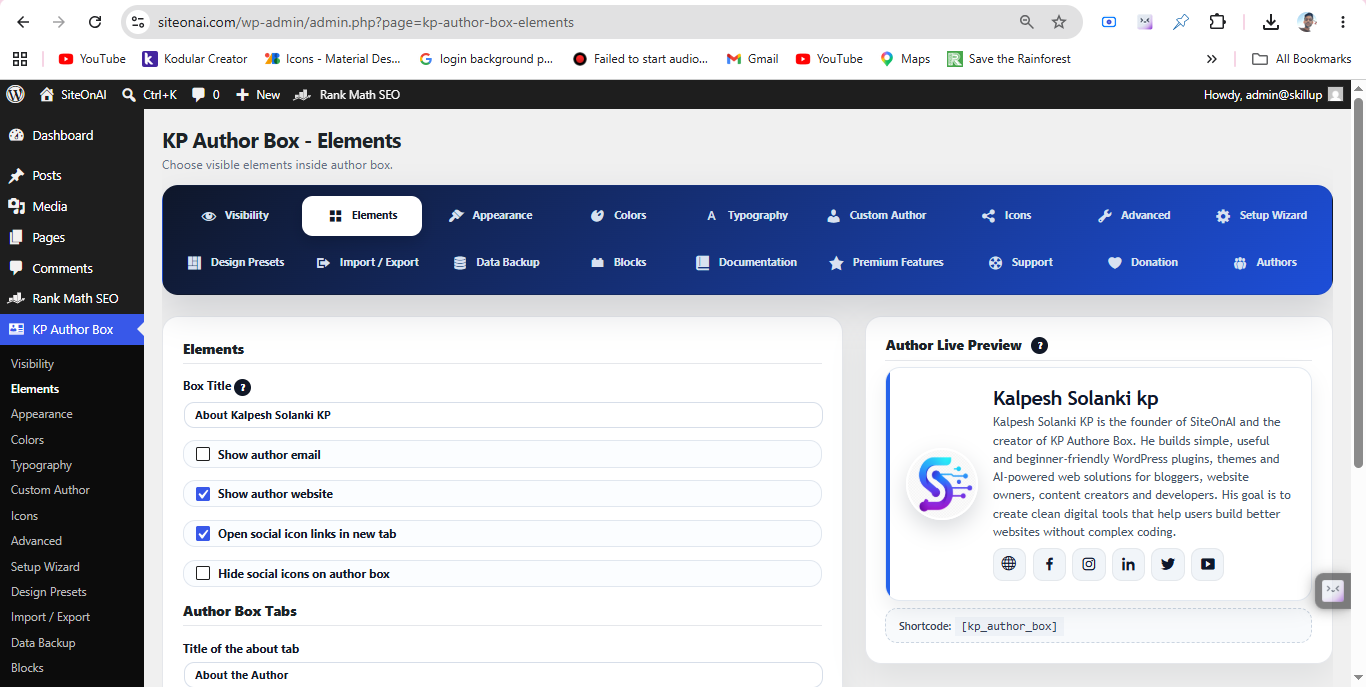
KP Author Box visual settings for author box customization.
Common Mistakes to Avoid
When creating a WordPress author page, avoid these common mistakes so your page looks professional and works properly.
Using a Very Long Bio
A long bio can make the page difficult to read. Keep it clear, short and useful.
Not Adding an Avatar
An author page without a photo or avatar may look incomplete. Use a clean and professional image.
Broken Social Links
Always test social media links after adding them. Broken links can create a poor user experience.
No Internal Links
Add internal links to author posts, plugin pages or related guides so readers can explore more content.
Helpful Links
Learn more about KP Author Box and WordPress plugin resources from SiteOnAI.
Frequently Asked Questions
What is KP Author Box Plugin?
KP Author Box is a WordPress plugin that helps you display author boxes on posts and pages with author name, bio, avatar, website and social links.
Is it mobile responsive?
Yes. KP Author Box is designed to display properly on desktop, tablet and mobile devices.
Can I add social media links?
Yes. You can add social links such as Facebook, Instagram, LinkedIn, X/Twitter and YouTube.
Can I use it without coding?
Yes. You can use KP Author Box without coding by managing settings from the WordPress dashboard.
Does it work on posts and pages?
Yes. KP Author Box can be used on WordPress posts and pages.
Conclusion
Creating a WordPress author page with an author box is a smart way to improve trust, branding and user experience. It gives readers a clear place to learn about the author and connect through website or social media links.
KP Author Box makes this process simple by helping you add author name, bio, avatar, website and social links without coding. You can use it for blog posts, pages, guest authors, business websites and multi-author content websites.
Create Your WordPress Author Page Today
Download KP Author Box and add a professional author box to your WordPress posts and pages.
Download KP Author Box